Automations
There are two different tools. Don't mix them up: one lives in Settings and the other in the Automation menu.
- Conversation rules — Settings → Conversation rules. One event, conditions and one or more actions. They are used to assign, label or change the status of a chat.
- Flows — Automation menu. Visual editor with trigger, wait, condition and action. They are used for sequences (one message, wait, another message).
1. Start with a short rule
Settings → Conversation rules. The text on the screen: "Create automatic rules to manage conversations…".
- Add rule. The "Add automation rule" dialog opens.
- Give it a name that describes the outcome, not the event.
- Choose the Event: Conversation created, Conversation updated, Resolved, opened, Message created, or Handover to advisor requested.
- Optional: Add condition (message type, text it contains, label…).
- Add action: Assign to agent, Assign team, Add or remove label, Send message, Add a private note, Change priority, Resolve or open, Snooze, Mute, Send transcript by email, or Send webhook event.
- Save. In the table, the Active switch turns a rule on or off without deleting it.
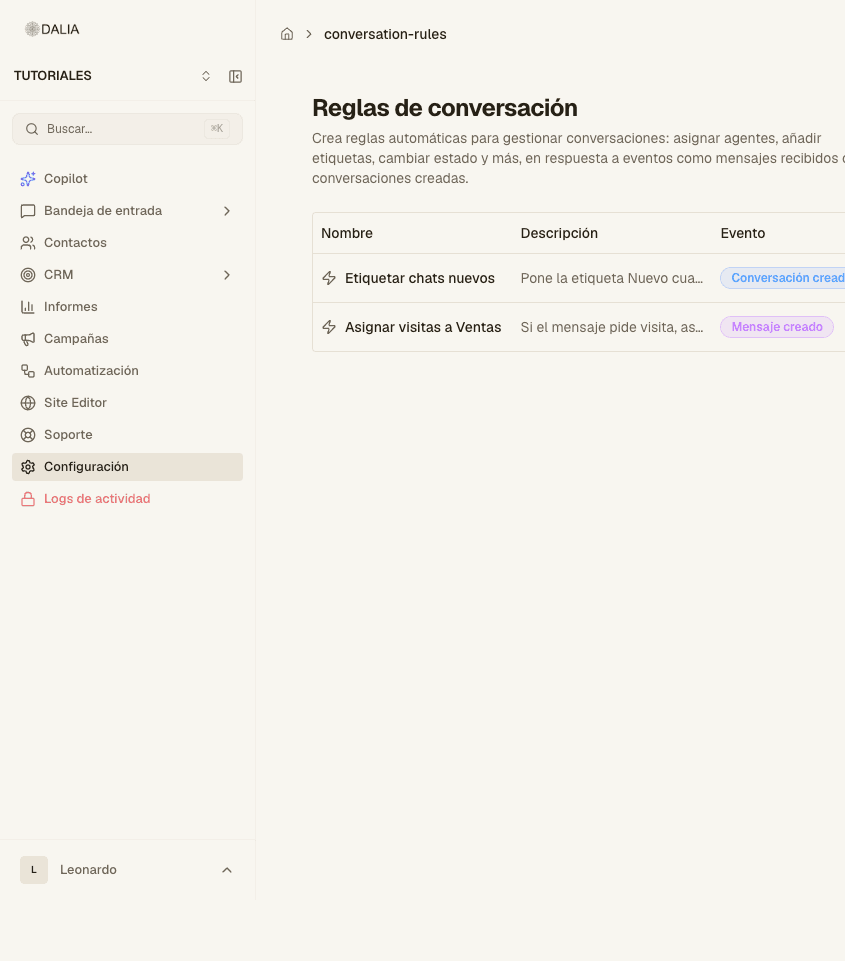
Examples that pay off in the first month:
- Conversation created → Add label "New".
- Message created, text contains "visit" → Assign Sales team.
- Handover to advisor requested → Assign to the agent on duty.
2. Flows (Automation menu)
The screen is titled Campaign automation. At the top: View logs, Use template, Create from scratch. If there are none: Start with a template or Create from scratch.
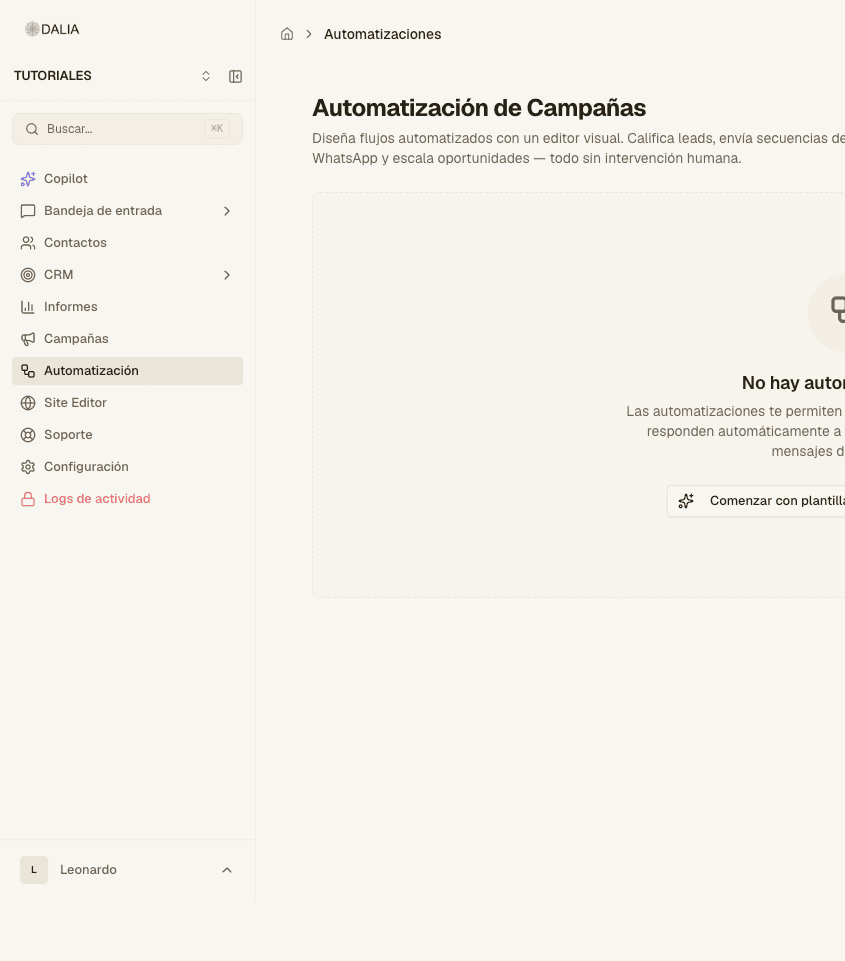
Build the flow
- Create from scratch or Start with a template.
- In the editor, each box is a node. The first one is the trigger. You configure it on the right.
- Chain condition, wait (minutes, hours or days) and action. You can repeat a section (loop).
- Save. It's saved as a Draft.
- Activate once you have tested it. You can also Pause or Archive.
Triggers
- Message received
- Agent message sent (AI or human)
- Human agent replied
- Contact created
- Contact attribute changed
- Conversation created / resolved
- Label added / removed
- Manual enrollment
- Webhook received
- Form submitted
Conditions
Field + operator + value. Operators: Equals, Not equals, Contains, Does not contain, Starts with, Ends with, Is present, Greater / less than, time since. Common fields: chat status, agent, team, priority, inbox, message content, labels, phone, email, hours since the last message. With CRM: lead status, stage, pipeline, value, days in stage.
Actions
- Send WhatsApp template
- Send message
- Trigger webhook
- Assign to agent or team (Specific agent, Fewest conversations, Next available)
- Add / remove label
- Update attribute
- Add private note
- Change priority
- Resolve conversation
- With CRM: move a lead to another stage, qualify, convert, create activity
- With Salesforce: advance or set commercial status, create task
- With voice: Phone call
If all you need is "when it arrives, add this label", don't build a flow: use a rule. Logs (administrators only) are in Automation → View logs.
Templates: WhatsApp templates. A send you launch by hand: Campaigns.