Knowledge base
Documents the AI agent consults when replying. Settings → Knowledge base (Artificial intelligence block). You need a plan that allows it, at least one inbox with an AI agent, and permission to manage the knowledge base.
It isn't available on the Free plan: you're sent back to Settings. The limit on collections and documents depends on the plan; you can also see it in Settings → Usage.
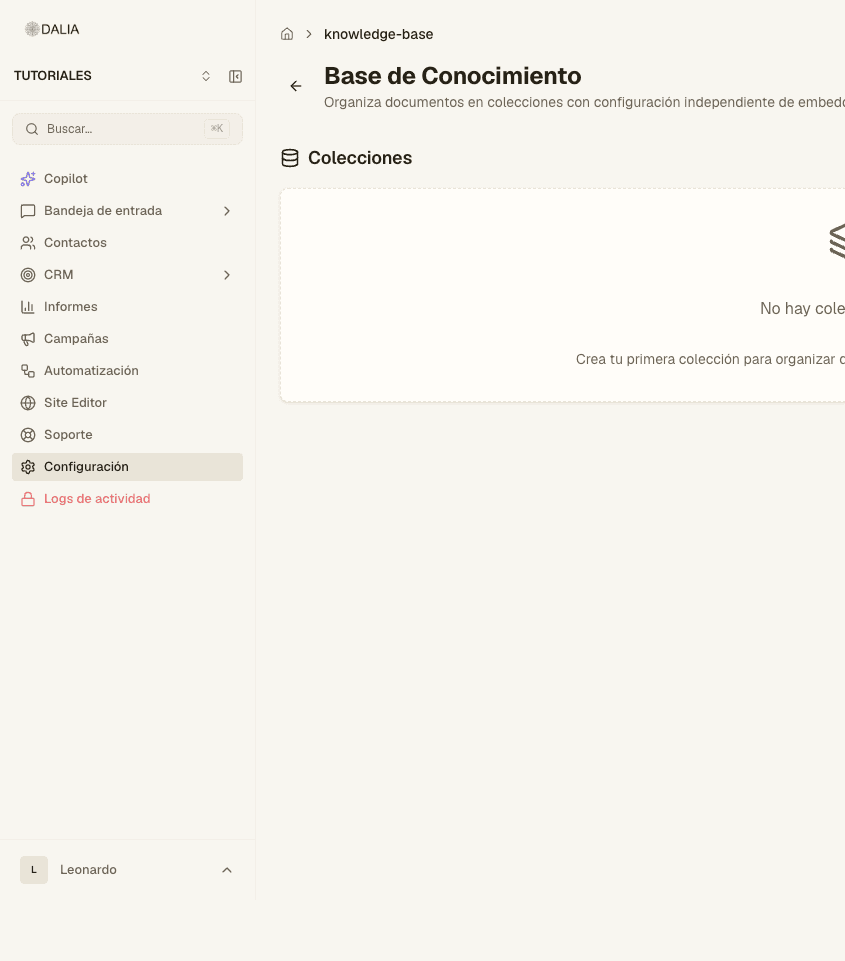
Create a collection
- New collection. The "Create collection" dialog opens.
- Name (required). The box shows examples: Sales Base, FAQ, Technical Sheets.
- Description, if you want.
- Create it. The collection status can be active, reindexing or archived.
A collection groups documents that are split into chunks the same way. Open the collection to upload files.
Upload documents
- Open the collection.
- Upload documents. PDF, Word or text.
- Wait for the status: Pending → Processing → Ready. If it fails, the file ends up as Failed: delete it and upload it again, or check that it isn't protected or empty.
The AI agent doesn't use a file until it is Ready. If it "hallucinates" or doesn't cite what you uploaded: lower the similarity threshold in the inbox's AI agent tab, or check that the collection is assigned.
Connect it to the AI agent
Uploading isn't enough. In each inbox that should consult it:
- Settings → Inboxes → Configure → AI agent tab.
- Turn on the master switch.
- Turn on Knowledge base (RAG).
- Check the Assigned collections. If you don't check any, it searches all the documents in the account.
- Save AI config.
How to turn the AI agent on: AI agent. How to test it without a customer: AI agent playground, in the same Artificial intelligence block.