Your first day
This page is for when the inbox is already connected. You won't be creating a channel: you'll sign in, understand the screen and reply.
1. Sign in
Open dal-ia.com/login. You can sign in with Google or with the email and password you were sent when you were invited. If you were invited by email and the link expired, ask for the invitation to be resent; there is no open sign-up.
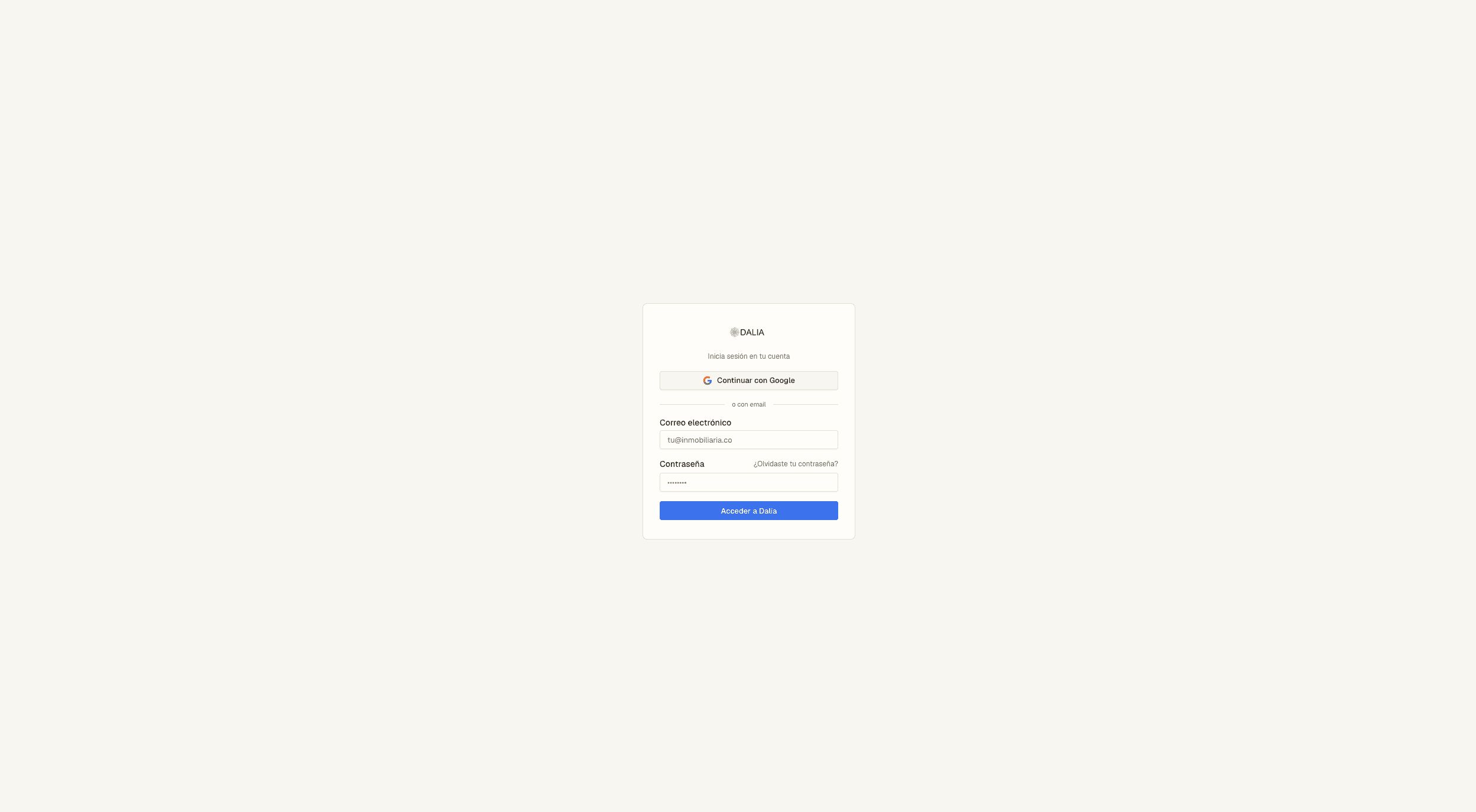
If you forgot your password, the link is next to the field, not in a hidden menu.
2. You land in the inbox
Once the account is set up, DALIA doesn't drop you on a metrics dashboard. It drops you in the Inbox. That's where the day's work lives.
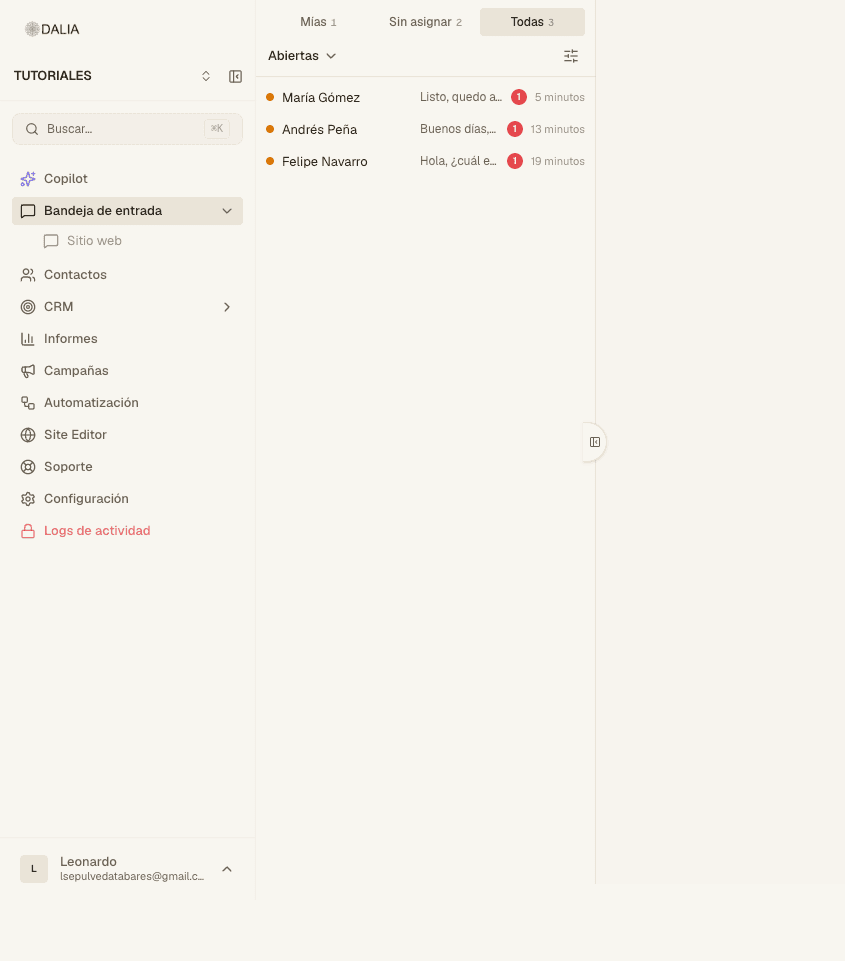
On desktop there are three columns: the conversation list on the left, the thread in the middle and, when you open a chat, the details on the right. On a phone you see one column at a time.
3. Choose what to handle
Above the list there are three tabs:
- Mine — chats already assigned to you (or that you took).
- Unassigned — the queue. Nobody has them yet.
- All — the whole set, if your role lets you see it.
Next to it there is a status filter. By default you see Open. You can also list Resolved, Pending, Snoozed or All.
Start with Mine. If there's nothing, look at Unassigned and take one.
4. Reply
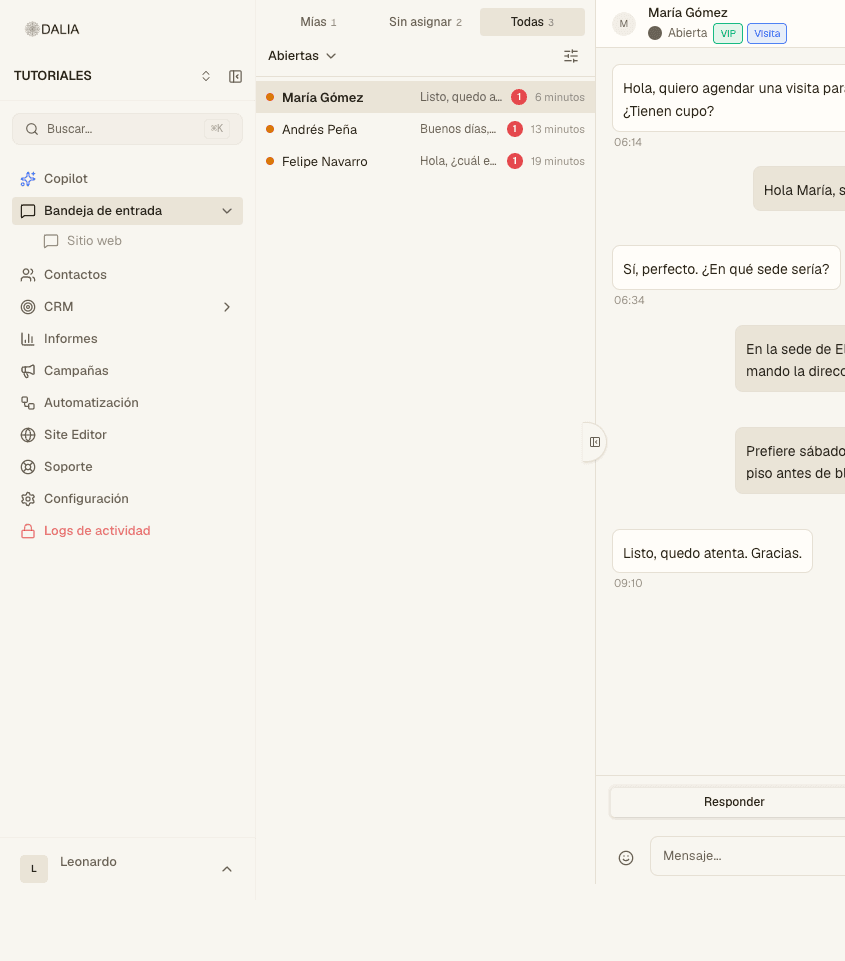
- Open the conversation.
- Type your message in the box at the bottom. The default mode is Reply: the customer sees that.
- ⌘ + Enter (or Ctrl + Enter) sends the message.
If you need to leave a comment for the team, switch to Private note. The customer doesn't see it. It's useful for passing along context when you hand the chat to someone else.
Type / to insert a canned response (text someone on the account already saved). The paperclip attaches files. The template icon sends a WhatsApp template when the 24-hour window has already closed.
5. Close the case when it's done
In the chat header there is Resolve. Use it when you're finished, not when you've "already read it". If the customer writes again, the conversation can be reopened. Snooze takes it out of the active queue until the time you choose.
6. Find someone
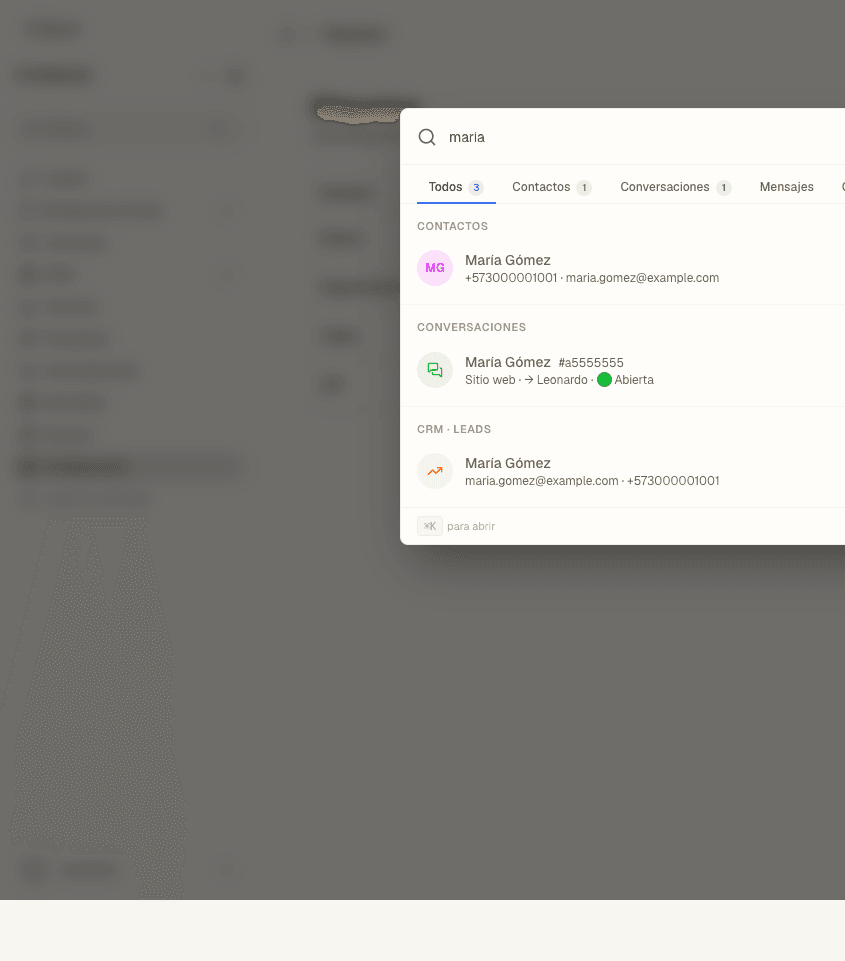
In the left menu, at the top, there is Search…. The shortcut is ⌘K / Ctrl+K. With two characters or more it searches contacts, conversations and — if the account has CRM — leads and opportunities.
7. Your profile and sound
At the bottom left, your name opens the menu. Go to Profile settings. There you set your name, Online/Offline status, password and, if you want, push notifications and sound (Pling, Chime or Pop).
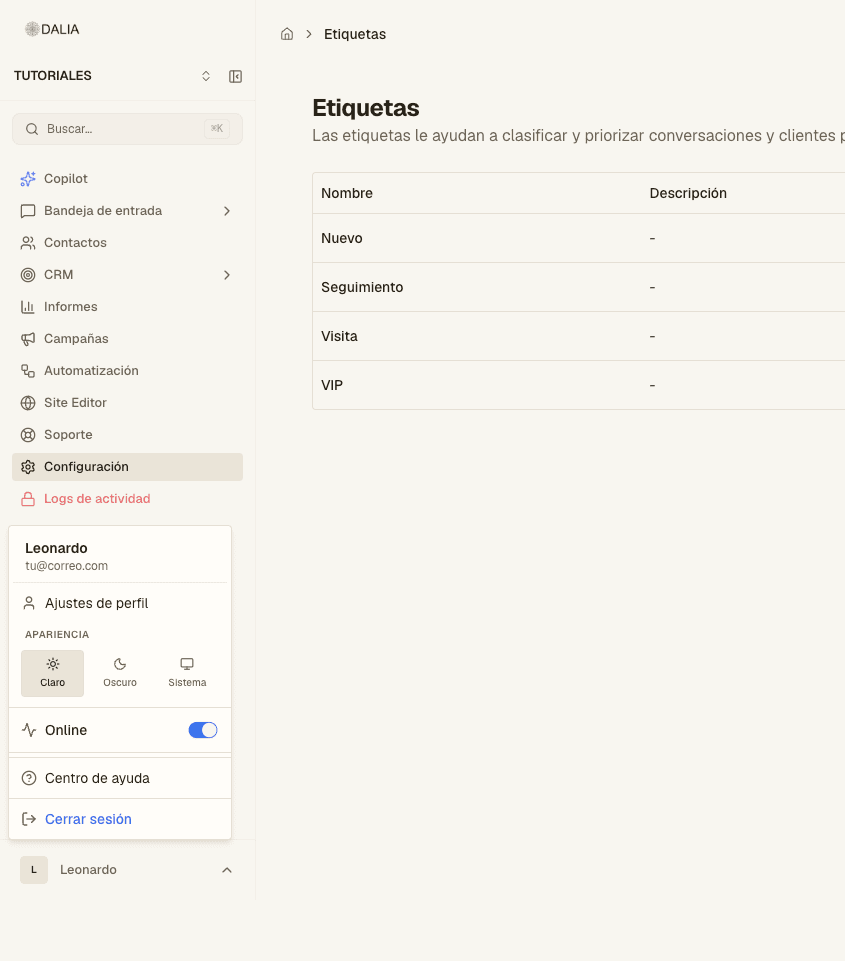
If you don't hear new messages, check the browser permission and the sound switch on that same page.
What you don't need on day one
Campaigns, new templates, the AI agent and billing are configured by whoever administers the account. You can work without touching those. When you need them, they're in the menu, not in this guide.
Read next: Inbox, with every inbox control.