Web widget
Chat on your site. Conversations land in an inbox like any other channel. In the menu it appears under the name you gave it (for example "Website").
Creating it
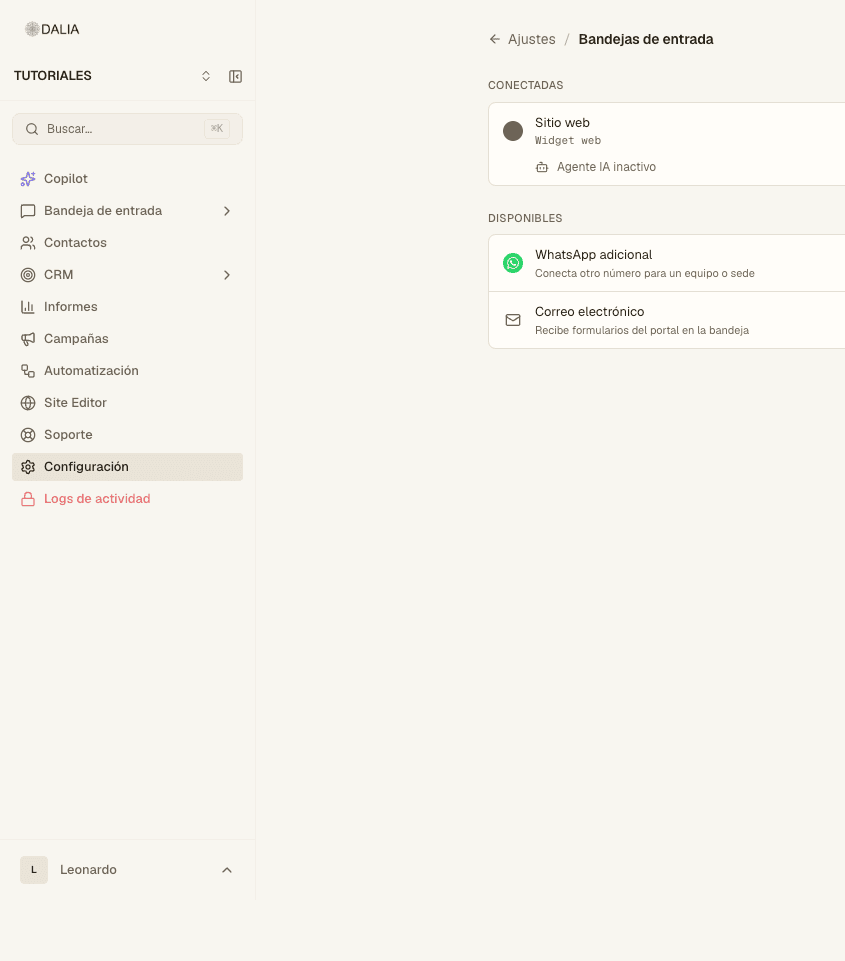
- Settings → Inboxes → Connect channel.
- In the channel list, choose Web widget.
- Fill in Inbox name, Widget title (the one the visitor sees), Widget color and Allowed domains. Without at least one domain, it isn't created: the widget can't be left open to any site.
- Optional: select which agents handle that line.
- Create web widget. It takes you to the settings with three getting-started steps (script, knowledge base if missing, and the AI agent playground).
Code and testing
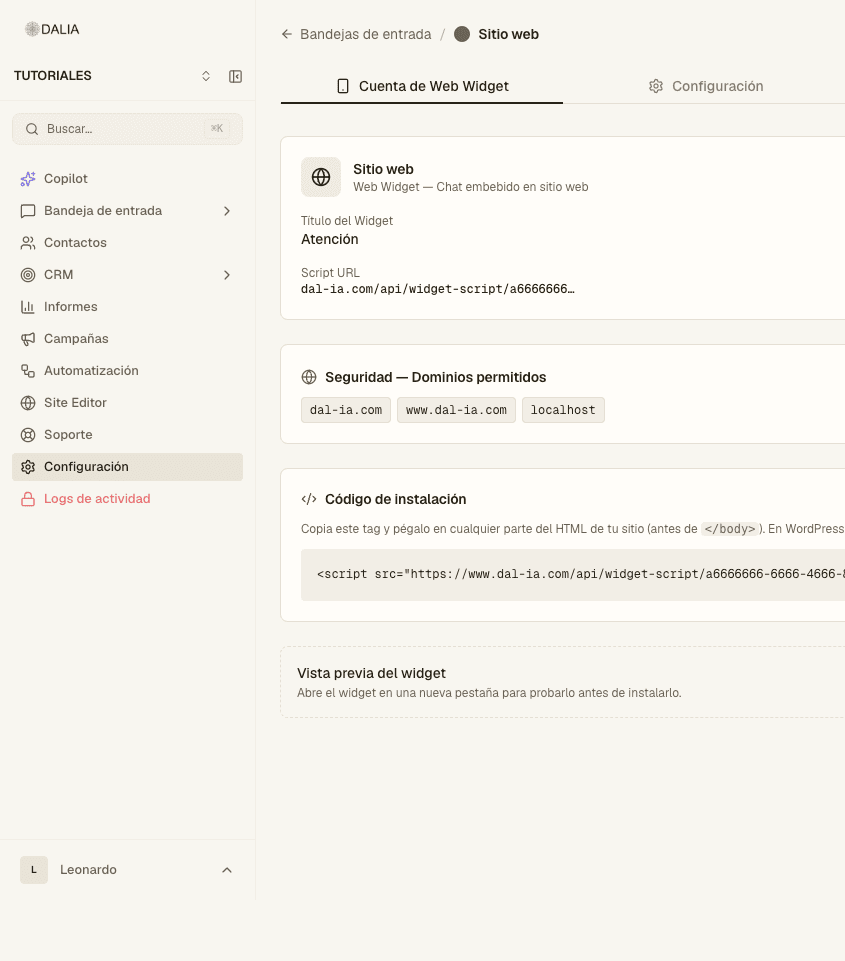
Settings → Inboxes → Configure on the widget's card. Web widget account tab:
- Copy the script. Paste it into your site's HTML, before
</body>. On WordPress it usually goes in the theme footer or in an HTML block. - Check Allowed domains. Outside that list the chat doesn't open. You can use
*.yourdomain.comfor subdomains. - Widget preview → Open widget. It's a DALIA page for testing without touching your site.
Appearance and team
The Settings tab changes the title, color and whether the bubble appears on the right or the left. Agents decides who sees those chats. AI agent is the switch for the AI agent that replies on its own on this line.
In the chat
The visitor types and the message reaches the inbox. If an agent replies from DALIA, the widget shows it without reloading (it checks every few seconds while the chat is open). If there's a catalog, product cards can appear.