Team
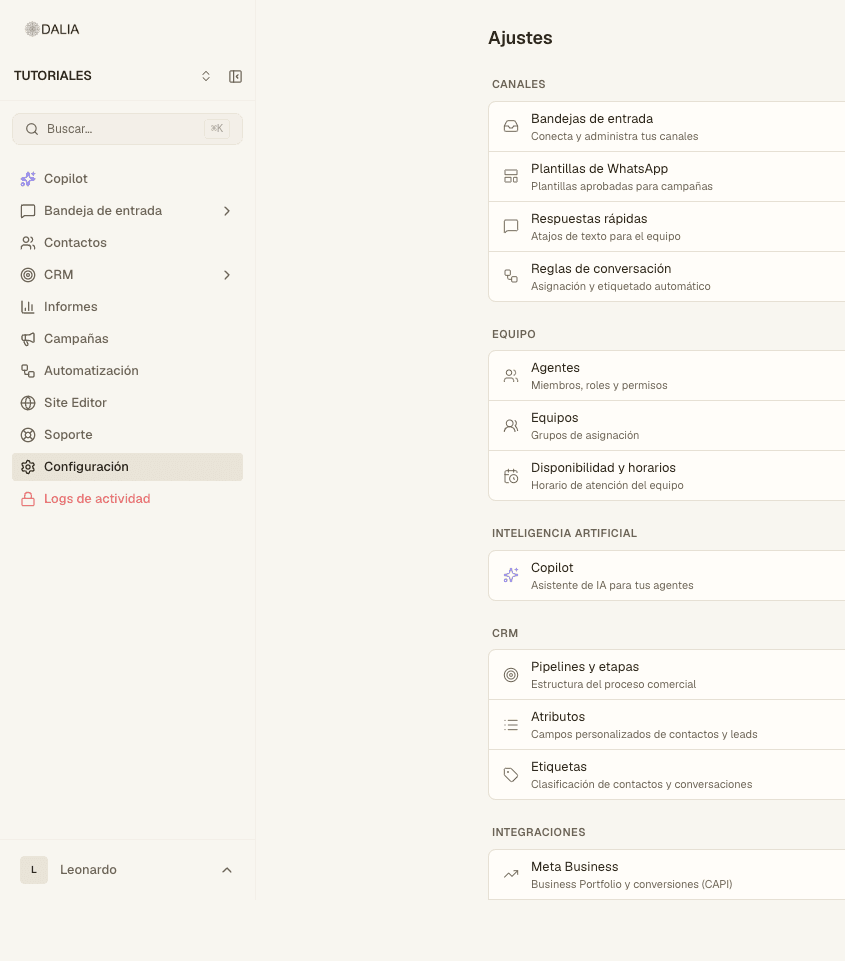
Who can access the account, with which role and which inboxes. Three screens in Settings, Team section: Agents, Teams and Availability and schedules.
Roles
- Owner — everything, including billing.
- Admin — team, campaigns, automations, settings. Billing only if they've been granted that permission.
- Agent — the inbox and contacts assigned to them. Everything else is controlled by individual switches (below).
Inviting someone
- Settings → Agents → Add agent. Dialog title: "Add agent to your team".
- Email and name. Choose the role.
- For an agent, select inboxes and permissions (next section).
- Send. They get an email with a link. If it expired, use Resend invitation on that row.
There's no open sign-up: only people you invite can get in. The profile email can't be edited afterward.
An agent's permissions
On the agent's profile (pencil icon or detail view), depending on the account's modules, you'll see:
- All convs. — sees all chats, not just their own.
- Assign convs. — can change who the chat is assigned to.
- All contacts — sees the full contact database.
- Campaigns: full access or read-only.
- Automation, canned responses, schedules, WhatsApp templates, knowledge base, reports.
- Resolve conversations.
- If the account has the module: properties, packages, quotes, test drives, site editor.
You also choose which inboxes they can access (readable inboxes). Without that checkbox, they don't see that line, not even under All.
Teams
Settings → Teams. A group for round-robin assignment (rules and flows). You create the team and add agents to it. In a rule: the "Assign team" action. In a flow: "Assign to team" with the Specific agent, Fewest conversations or Next available mode.
Availability and schedules
Settings → Availability and schedules. Define, per person or for the whole account, when someone counts as on shift. Reports uses this for "Response during business hours". Rules can check "Agent assigned during hours".
Each user also has their own screen: name → Profile settings, or weekly availability. Online/Offline in the bottom menu takes effect immediately: it doesn't replace the weekly schedule.
How a chat gets assigned from a rule: Automations. What the chat looks like: Inbox.