Campaigns
Bulk WhatsApp sends using a template Meta has already approved. Menu: Campaigns. The screen subtitle is "WhatsApp broadcast". Some users can only view, not create.
The list
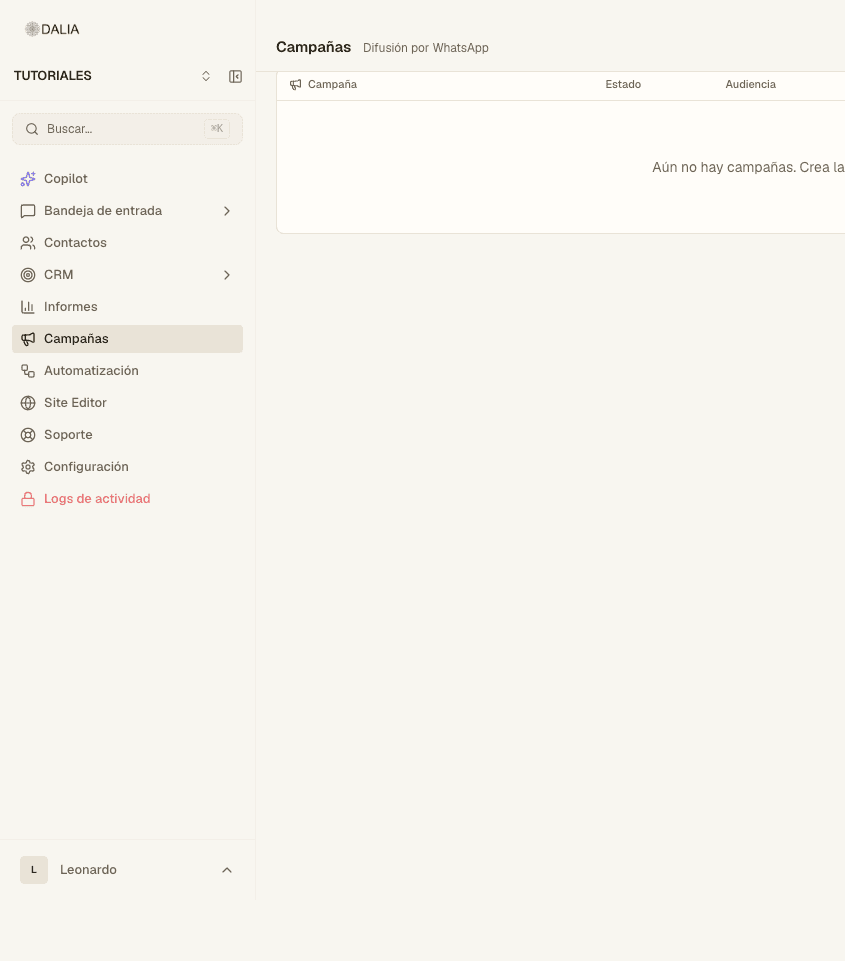
Top right: Refresh and New campaign. The columns are Campaign, Status, Audience, Inbox, Sent and Date.
If there are none yet, the box says so and the create button is in the same place.
Statuses
- Draft — can be edited. Path:
/dashboard/campaigns/…/edit. - Scheduled — waiting for the date. It can also be edited.
- Sending — messages are going out. You can cancel the rest.
- Completed, Failed, Canceled.
Clicking a row opens its details: template, which inbox it was sent from, statistics, delivery funnel and the contacts table.
Create one, step by step
New campaign opens three steps at the top right: 1 Audience, 2 Message, 3 Review.
Step 1 — Audience
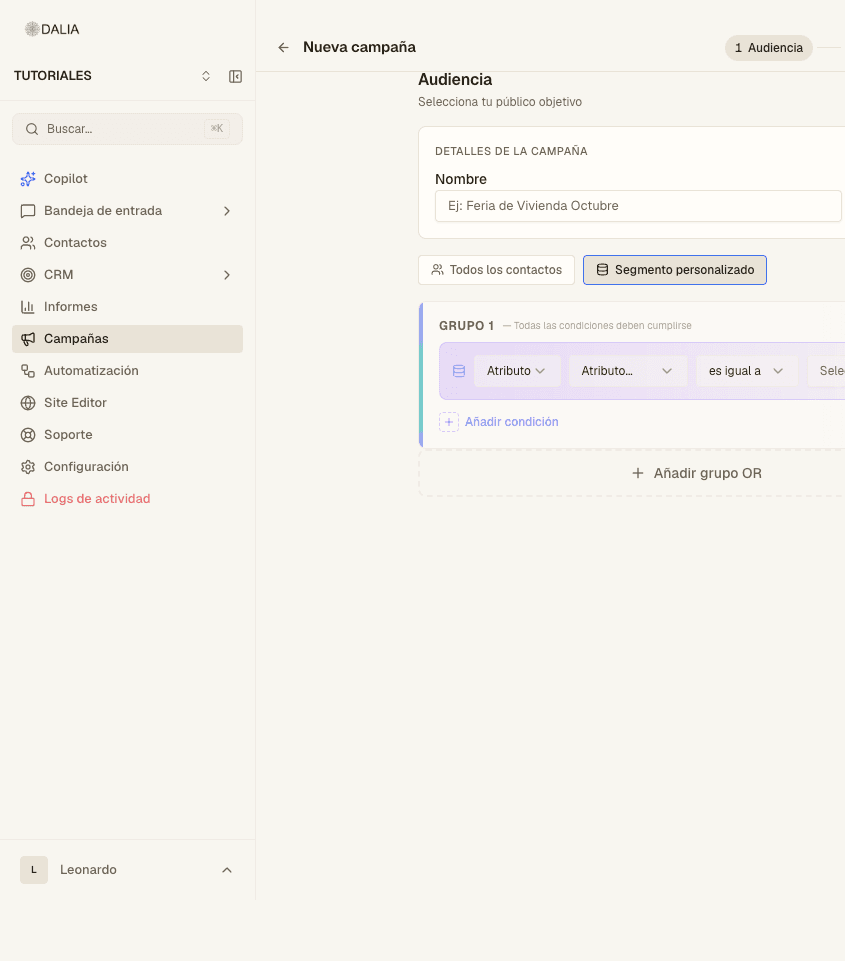
- Name. Use one you will still understand in three months (the box shows "October Housing Fair" as an example).
- WhatsApp inbox. The number it sends from. Without a WhatsApp inbox you can't continue: the Next button stays disabled.
- Choose All contacts or Custom segment.
- In a segment: each row is attribute + operator ("equals", etc.) + value. Add condition adds another row to the same group (all must be met). Add OR group opens a second group.
- On the right, Preview shows how many contacts match once the conditions are complete.
Step 2 — Message
- Template → "Select template…". Only approved templates for that inbox are listed. If the list is empty: sync or request one in WhatsApp templates.
- The sync icon (title "Sync from WhatsApp") pulls in templates Meta already has that DALIA doesn't have yet.
- If the template has variables, fill in Template variables. The preview shows the text as the contact will see it. An empty value shows up as a gap in WhatsApp: don't leave it empty.
- Header with an image or video: upload it or paste the URL Meta already approved. Don't change the approved body; Meta rejects it at send time.
Step 3 — Review
- Check the Campaign summary: name, inbox, template, audience size.
- Scheduling: leave the date empty to send now, or pick a day and time.
- Send now or Schedule.
Templates are requested and synced in WhatsApp templates. A send that fires on its own, without you clicking the button, is an automation.