Meta
WhatsApp, ad forms and conversion events. There are two screens: channel setup (Inboxes) and the app credentials (Settings → Meta Business).
1. Connect WhatsApp (recommended)
Use it when the business already has Meta Business and a WhatsApp Business number. You don't paste tokens by hand.
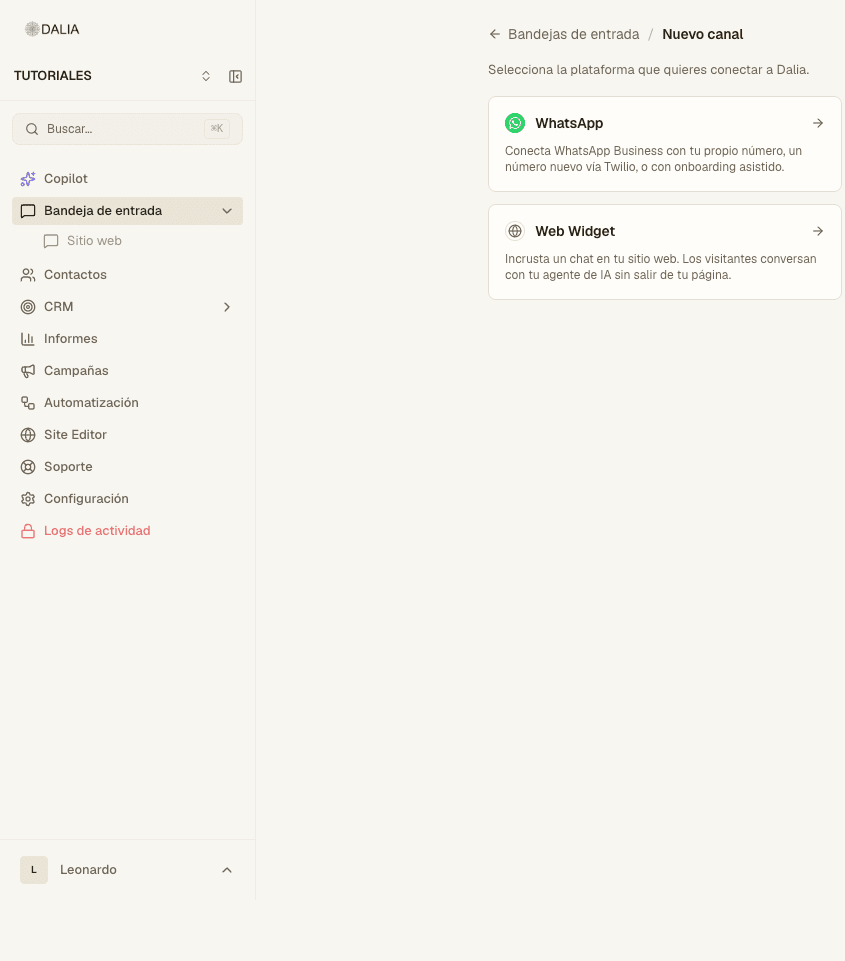
- Settings → Inboxes → Connect channel.
- In New channel, choose the WhatsApp card.
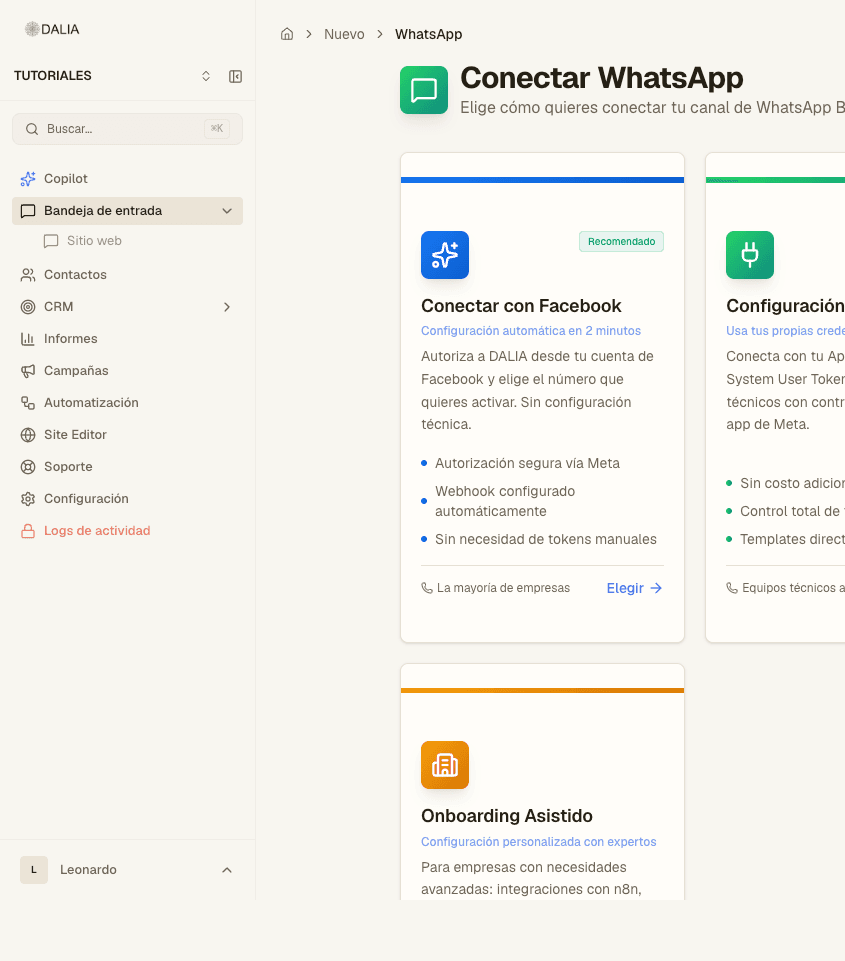
- In Connect WhatsApp, click Choose on the Connect with Facebook card (it has the Recommended badge).
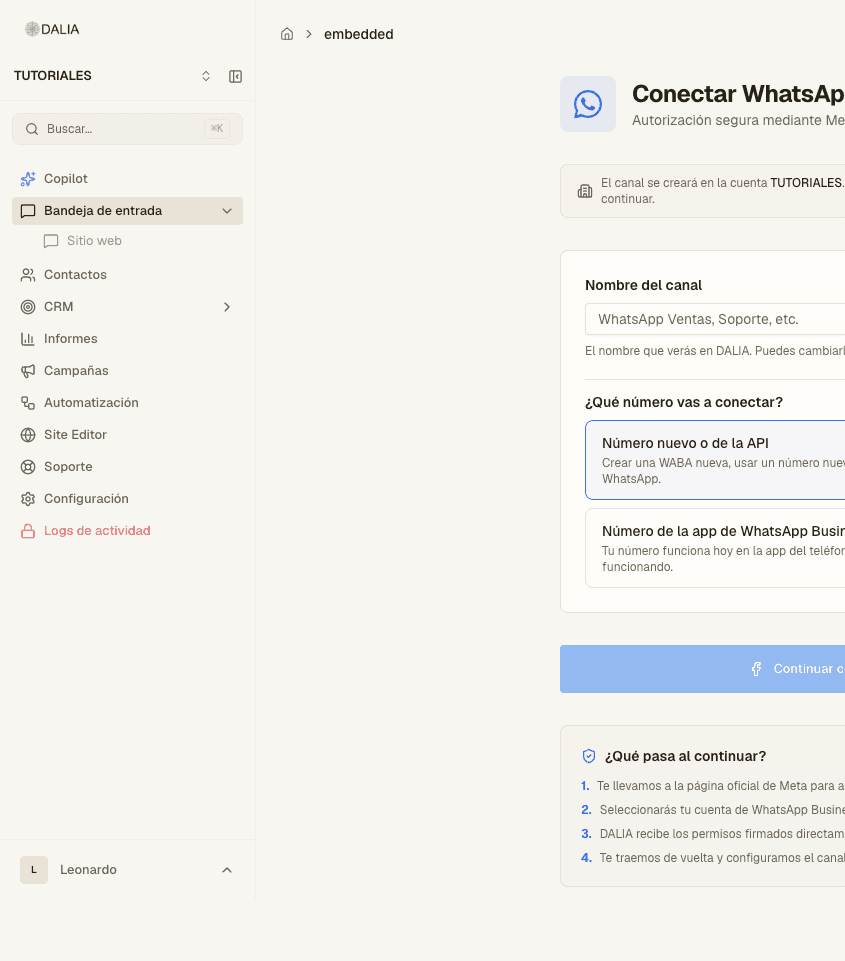
- Fill in Channel name (the one you'll see in DALIA; it can be changed later).
- Choose the number type:
- New or API number — a new WABA, a new number, or one already used by the API.
- WhatsApp Business app number — the one on the phone. It connects with a QR code and the app keeps working.
- Optional: select which agents handle that line.
- Continue with Facebook. It takes you to Meta (the button says "Redirecting to Meta…"). There you sign in and choose the WABA and the number.
- When you come back, DALIA creates the inbox automatically. Send a test message to that number.
2. App credentials (when needed)
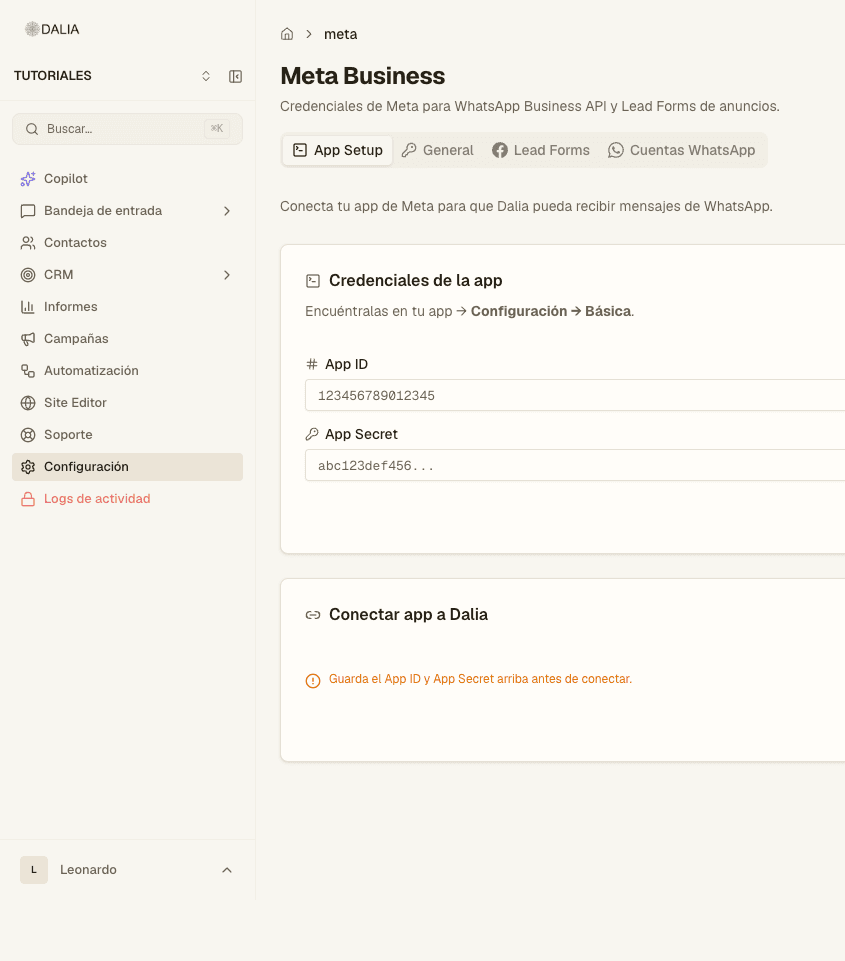
Settings → Meta Business. Subtitle: "Meta credentials for the WhatsApp Business API and ad Lead Forms." Tabs: App setup, General, Lead Forms, WhatsApp accounts.
- In App setup, paste App ID and App Secret (in Meta: your app → Settings → Basic).
- Save. The orange notice reminds you to save this before connecting.
- Connect app to DALIA. Once it's done, you'll see "App connected to DALIA" or Reconnect webhook.
- In General, if applicable: System User Token and Business Portfolio ID → Save.
3. Ad forms and CAPI
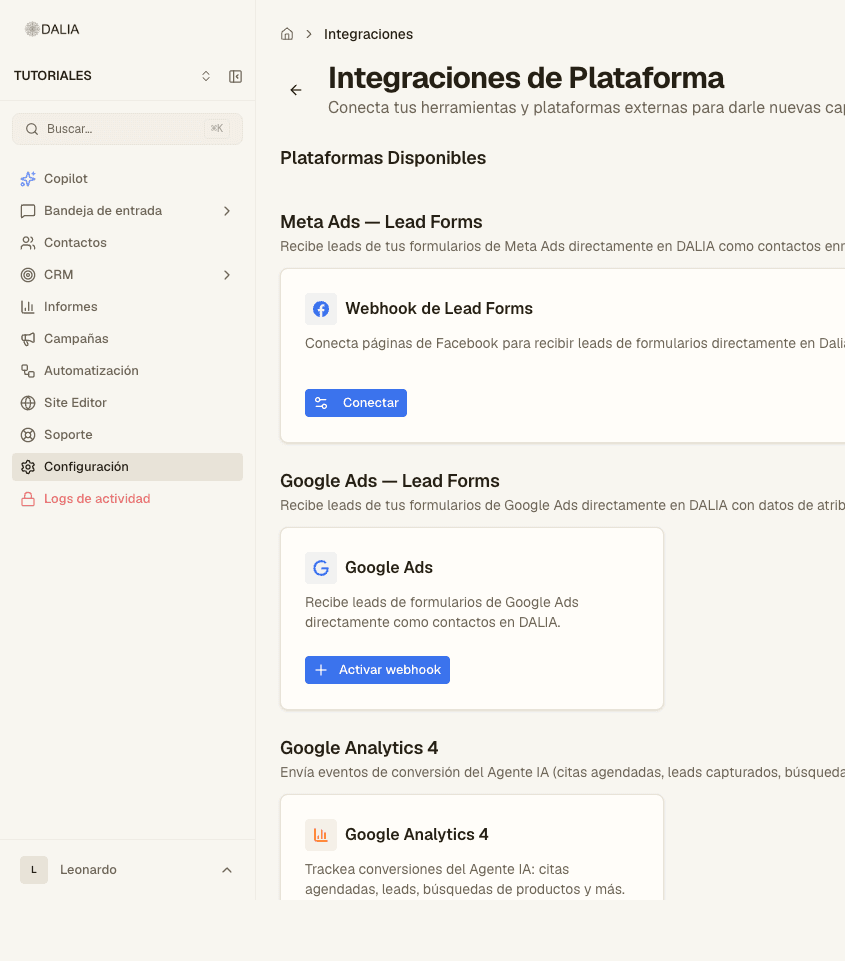
Settings → Platform integrations. The Lead Forms tab in Meta Business only sends you here ("Go to Integrations").
Meta Ads — Lead Forms → Connect (or Configure if there are already pages). In the dialog: Page ID, page name, Page Access Token and, if you want, App Secret. DALIA shows you the webhook URL and the verification token to paste into Meta. Subscribe to the leadgen field.
Each submission creates or updates the contact and triggers the "new contact" rules. If Marketing API access is set up, the campaign and ad are usually saved too.
Further down, Meta Conversions API → Connect or Configure destinations. Each destination asks for a Pixel ID, an Access Token and, if you're testing, a Test Event Code. DALIA sends events from the server (Lead, Contact, Purchase, etc.).
The site widget is another channel: Web widget. The number's templates are in WhatsApp templates.